
Viewing User Claims
Viewing User Claims
Claims Tab
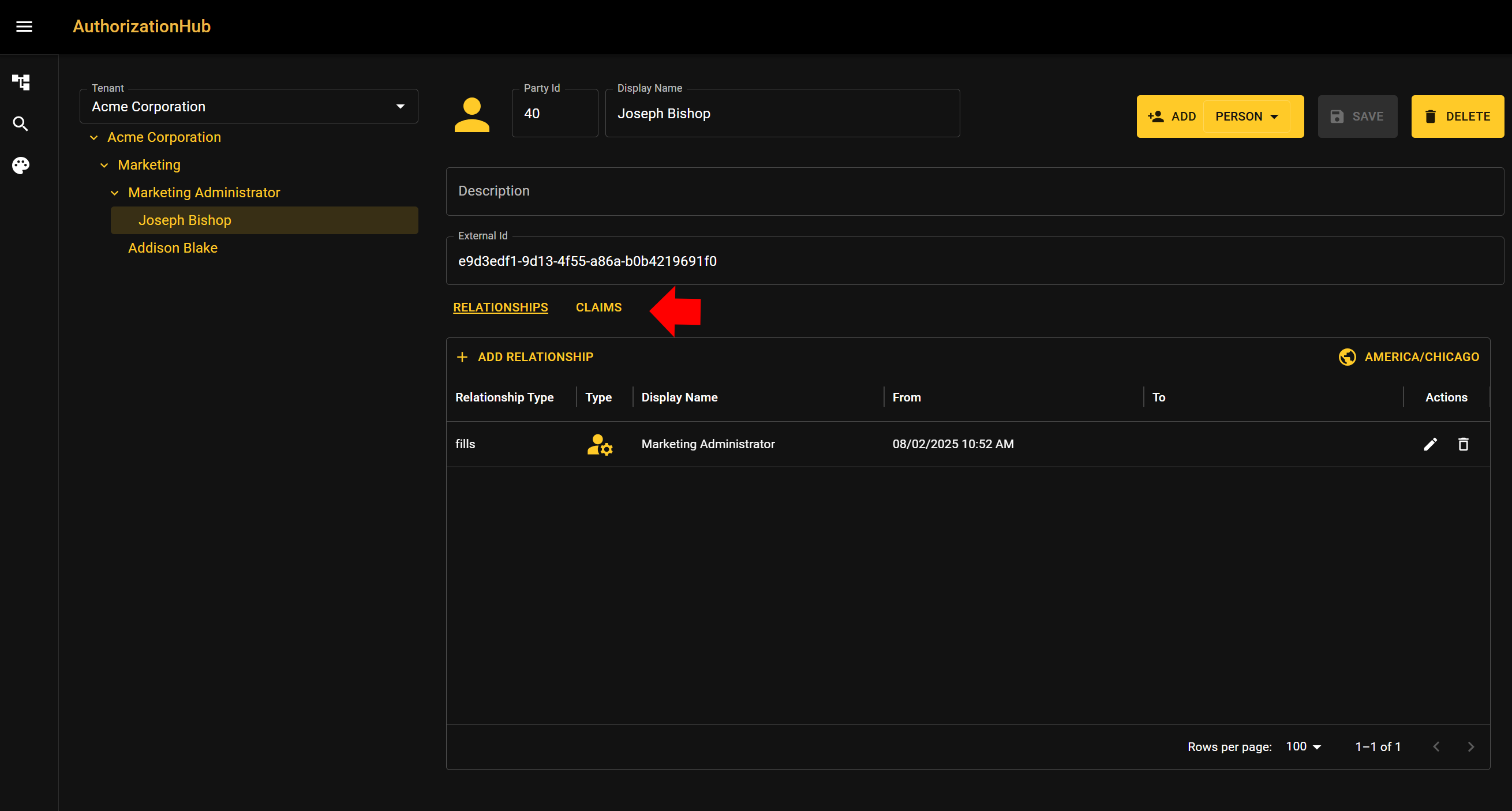
When viewing person data in AuthorizationHub, you will see a Claims tab. Click this to view the claims that will be added to a user when they make a request in your web application.
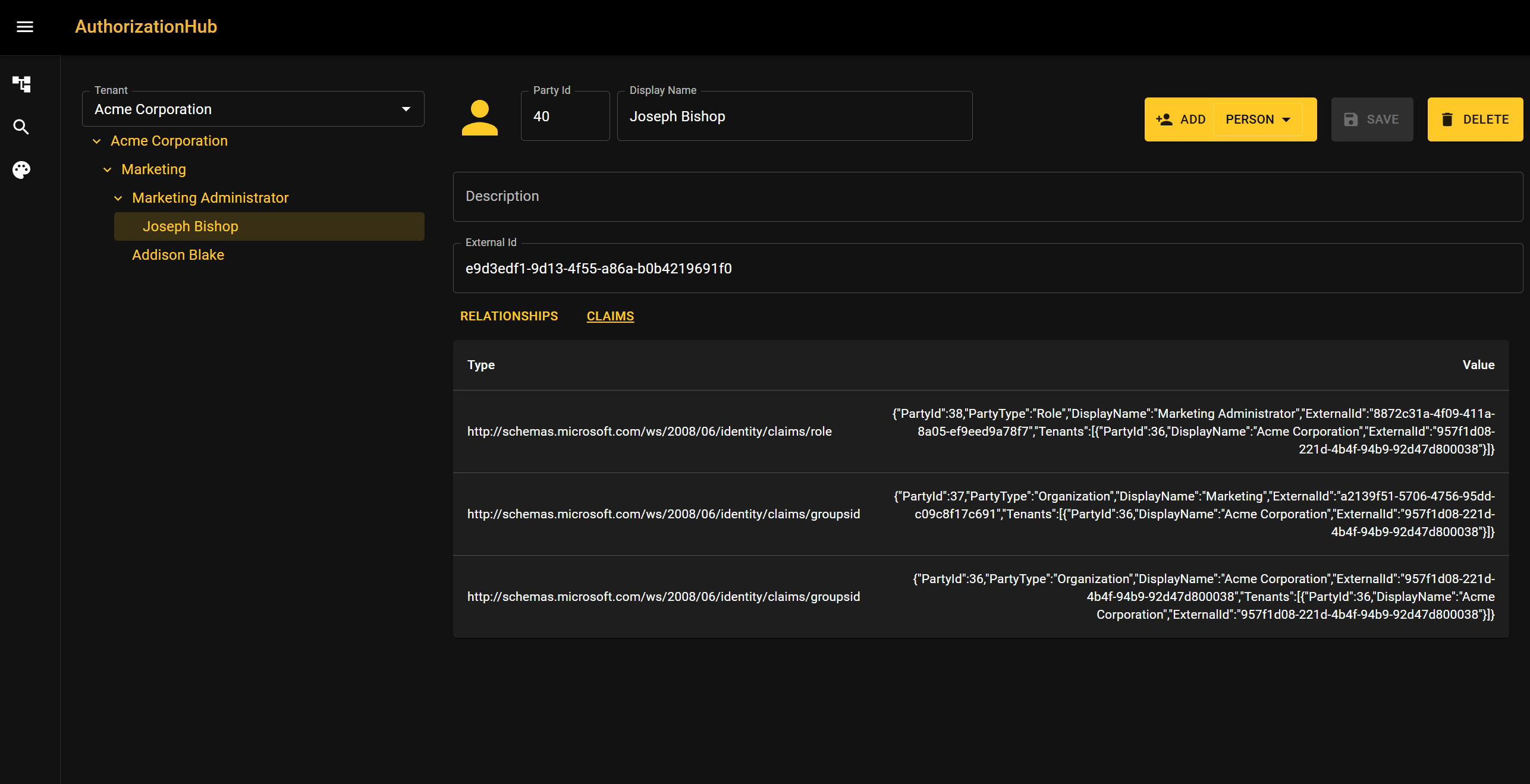
Each claim added to the user's identity will have a type and a value. The value is a json document that specifies the group or role that the user is part of. It also includes the tenant information that will be used in multitenant scenarios. Having information such as "PartyId", "DisplayName", and "ExternalId" means you can use any of those values in Authorization checks.
In this example, Joseph Bishop is a member of the Marketing Administrator role. She will get a claim for each relationship up the organizational tree. That means she gets a claim for being part of the Marketing Administrator role, the Marketing Group, and Acme Corporation.
There are two settings in the appsettings.json file that will affect how claims are generated. The first is UseMultiTenantRequirements. When this is set to true, the claims values will be json objects that contain a list of tenants that the claim should apply to. MultiTenant requirements will be able to consume these claims and compare the tenant list to the tenant revelant to the request. If this setting is not present, three claims will be generated for each relationship; display name, externalId, and partyId.
ReplaceGroupClaimsWIthRoleClaims is a setting designed to make implementing AuthorizationHub in an existing solution easier. It changes Group claims into Role claims, because many software applications don't always distinguish between Groups and Roles. If you have controllers that utilize authorization attributes, [Authorize(Roles = "Admin")], you may consider applying this setting rather then converting to authorization policies.